2.1.2. Code Folding
With this feature, we can reduce the code to outlines. To enable folding in current source file, .
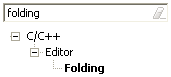
Eclipse can also fold code, as soon as the source file is opened. To enable it, open . Be careful with this feature, for huge files it maybe resource intensive.
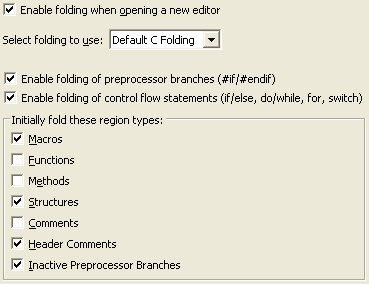
Most of the options in the preferences are self-explanatory.
See that there is a separate provision to hide license / copyright related header comment at the beginning of the source file by default. This feature will automatically hide just the license/copyright headers at the beginning of the source file, but show other relevant comments.
Note
The folding of preprocessor branches may not work as expected some times.
Indexing might have to be setup correctly. See Indexing
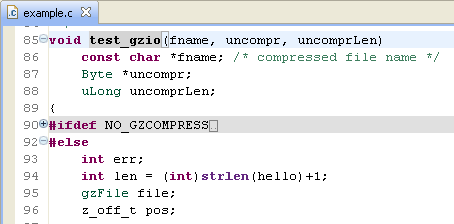
This is how folded inactive preprocessor branch would look like.
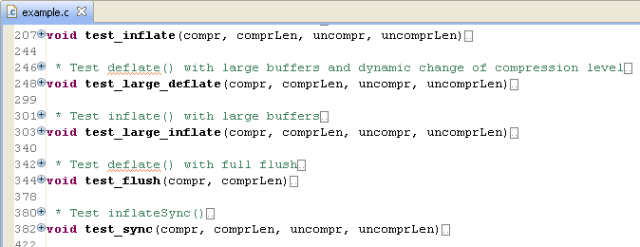
This how fully collapsed code would look.
2.1.2.1. Keyboard Shortcuts
These are the default keyboard shortcuts for Code folding
- Enable Folding —
Ctrl + Numpad Divide - Expand All —
Ctrl + Numpad Multiply - Collapse All —
Ctrl + Shift + Numpad Divide - Reset Structure —
Ctrl + Shift + Numpad Multiply